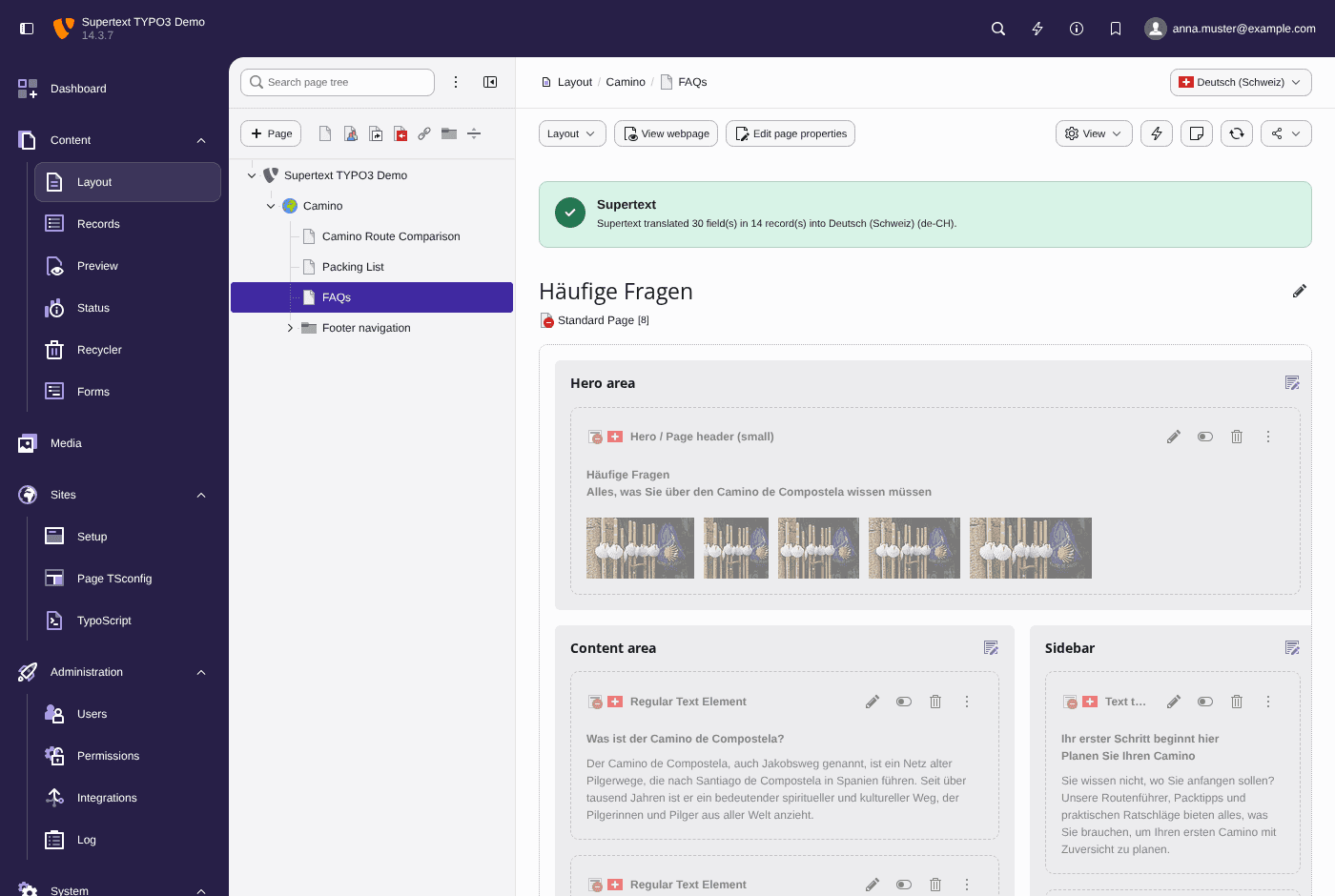
With the Supertext extension, TYPO3 translates pages in the step you already know: the Localize wizard. This guide takes you from installation to a translated page in Swiss Standard German.
You need: TYPO3 13.4 or 14.3 LTS installed with Composer, a Supertext account and about ten minutes.
Swiss Standard German or dialect?
Websites in German-speaking Switzerland are written in Swiss Standard German: standard German with "ss" instead of "ß" and Swiss words and spellings. In Supertext that is de-CH, and it is what this guide uses. For a deliberately local tone, Supertext also writes Swiss German dialect, Zurich or Bernese (gsw-u-sd-chzh, gsw-u-sd-chbe), something most machine translation can't do.
1. Get your API key
Log in to Supertext or create an account, then generate a key under Integrations → API. This needs the Admin role in your Supertext account; otherwise ask your account's admin.
2. Install the extension
The extension isn't on Packagist yet, so add its GitHub repository and require it:
composer config repositories.supertext-typo3 vcs https://github.com/Supertext/Typo3-Supertext-Translation
composer require supertext/typo3-translation:dev-main
vendor/bin/typo3 extension:setup -e supertext_translation
vendor/bin/typo3 cache:flush
3. Enter the key
In the backend, open System → Settings → Extension Configuration → supertext_translation (TYPO3 13: Admin Tools → Settings) and paste the key into Supertext API key. On a server you can set the environment variable SUPERTEXT_API_KEY instead, which keeps the key out of the database. The Status block at the top confirms that the connection works.
4. Add Swiss German as a site language
Open Sites → Setup, edit your site and, on the Languages tab, add a language with the locale de_CH.UTF-8 (for example Deutsch (Schweiz)). In its Supertext palette:
- Supertext language: Default (de-CH) is preselected for this locale. Keep it.
- Supertext tone: Formal for "Sie", or informal for "du".
Save. The default language of the site is the source.
5. Translate a page
- Open Content → Layout and select the page in the page tree.
- In the language menu at the top right, choose Deutsch (Schweiz) under Create new translation.
- In the Localize wizard, keep all content elements selected, choose Translate (connected mode) and click Localize.
After a few seconds a green message confirms what Supertext translated, for example "Supertext translated 30 field(s) in 14 record(s) into Deutsch (Schweiz) (de-CH)." Page title, SEO texts, headers, rich text, captions, alt texts and tables are translated; the URL is rebuilt from the translated title, for example /about-us becomes /de/ueber-uns.
6. Review and publish
New translations are hidden, as usual in TYPO3. Read through the page, adjust anything you'd phrase differently and unhide the page translation and its content elements. Done.
Next steps
- Content added later: translate it from Display mode → Language Comparison with the Translate button in the German column.
- Many pages at once, or your own translators: see the TYPO3 integration page and its XLIFF and HTML export.
- French and Italian for Switzerland work the same way, with fr-CH and it-CH.